







If you have recently typed the phrase “my laptop is very slow and hanging” into a search engine, you are not alone. There is nothing more frustrating than being in the middle of important work or an intense gaming session, only to have your system completely lock up.
While many users rush to reinstall their operating system, delete files, or run antivirus scans, the root cause of a chronic laptop hang is very often physical, not digital. Laptops are compact machines, meaning they are highly susceptible to dust buildup, overheating, and hardware degradation over time. If a computer has never been internally serviced since the day it was purchased, a hardware breakdown is inevitable.
In this comprehensive guide, we will explore exactly what happens inside your machine when a laptop hangs and freezes, the hidden hardware issues that cause these lockups, and the exact step-by-step professional maintenance required to bring a dying laptop back to life.
Table of Contents
Key Takeaways
- Never Skip Maintenance: If you are complaining that “my laptop is very slow and hanging,” the culprit is likely years of accumulated dust and dried thermal paste causing severe thermal throttling.
- Safety First: Always disconnect the internal battery before touching the motherboard to prevent catastrophic short circuits.
- Thermal Management is Critical: Replacing hardened thermal paste on the CPU and applying new thermal putty on the VRAM restores normal temperatures and stops sudden freezing.
- Hardware Affects Software: A dead CMOS battery will cause your laptop to forget BIOS settings, often resulting in a “Secure Boot Blue Dump Error.”
The Hidden Causes Behind a Constant Laptop Hangs and Freezes Constantly
When a computer runs hot, it initiates a self-preservation protocol known as thermal throttling. The system intentionally slows down the processor to generate less heat. If the heat continues to rise, the motherboard will completely lock up or shut down to prevent the silicon from melting. This is the primary reason your laptop hangs and freezes during demanding tasks.
1. Severe Dust Accumulation
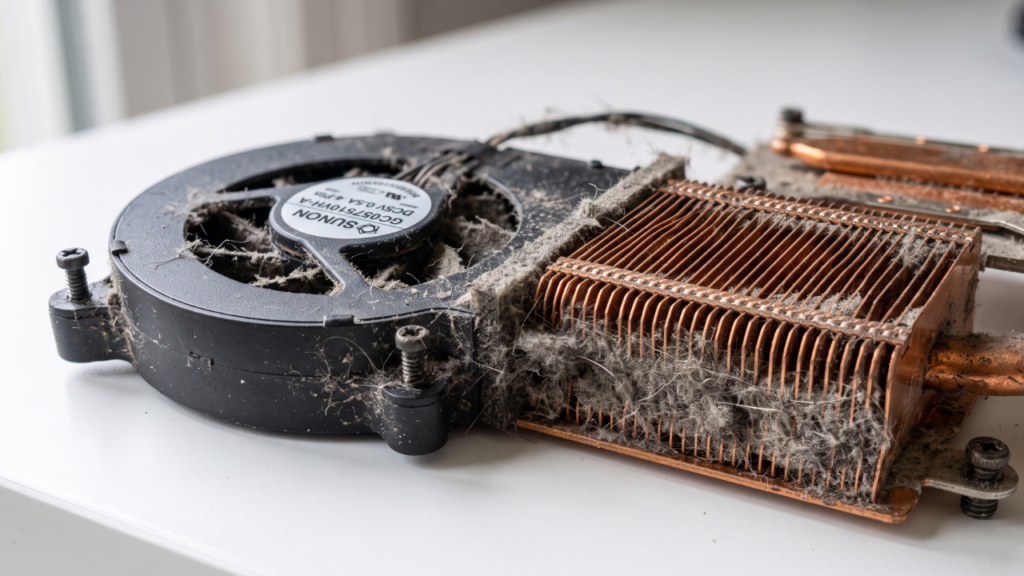
Laptops pull in cool air from the bottom and exhaust hot air from the sides or back. Over time, these intake vents suck in dust, pet hair, and debris. This creates a thick blanket of dirt over the cooling fans and heatsink fins. When the fans become completely jammed, the hot air has nowhere to escape, baking the internal components.
2. Hardened Thermal Paste and Putty
Between your processor (CPU/GPU) and the copper heatsink sits a layer of thermal paste. This conductive compound transfers heat away from the chips. After years of heavy use without a service, this paste dries out and turns into a chalky stone-like substance. Once it hardens, it loses its thermal conductivity, leading to an immediate and severe laptop hang whenever the processor is put under load.
Step-by-Step Hardware Maintenance for Freezing Laptops
If your machine is locking up, a deep physical cleaning and repasting is the ultimate cure. Here is how a professional technician tackles the problem.
Step 1: Disconnect the Battery (Crucial Safety Step)
⚠️ WARNING: Never begin working on a laptop motherboard while the battery is connected.
As soon as the back panel is removed, the very first step is to carefully unplug the internal battery connector. Failing to cut the power before inserting metal tools (like tweezers or screwdrivers) can cause an immediate short circuit, permanently destroying the motherboard.
Step 2: Unclog the Cooling Fans and Heatsink
Once the power is safely cut, the technician will inspect the cooling module. In neglected laptops, the fans are usually seized.
- The heatsink assembly is carefully unscrewed.
- Anti-static tweezers and soft brushes are used to pull out the dense mats of dust blocking the exhaust vents.
- Compressed air is used to blow out any remaining microscopic particles from the fan blades.
Step 3: Apply Fresh Thermal Paste and VRAM Putty
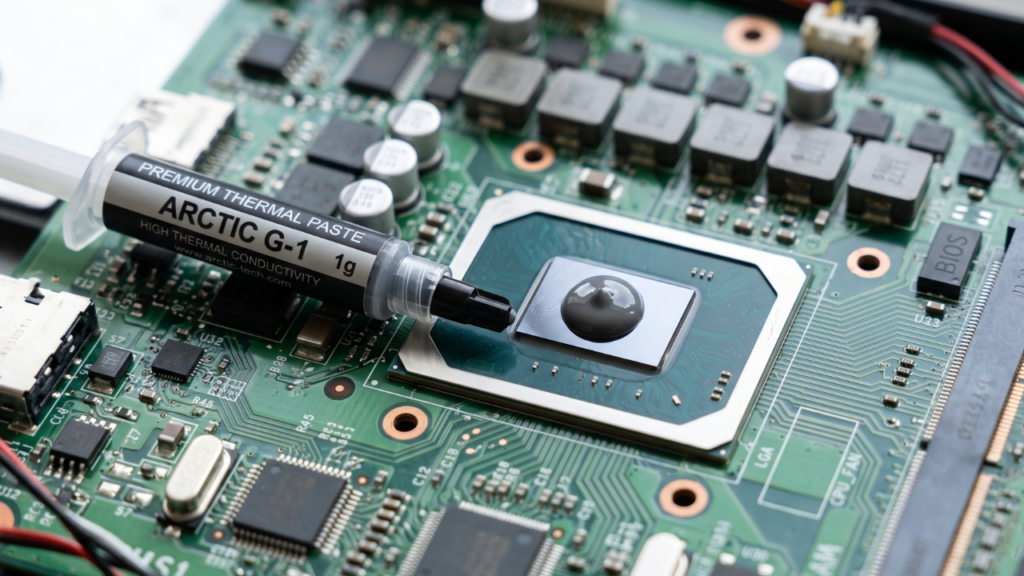
With the heatsink removed, the old, stone-like thermal paste is exposed.
- The hardened paste is gently cleaned off the CPU and GPU dies using high-concentration isopropyl alcohol (99%).
- A high-quality, fresh thermal paste is applied to the CPU and GPU to restore heat transfer.
- The Video RAM (VRAM) chips surrounding the GPU often use thermal putty or thermal pads. Fresh thermal putty is applied to ensure the memory modules do not overheat and cause graphics-related freezing.
Step 4: Lubricate the Hinges
A laptop that runs too hot often suffers from brittle plastic chassis components. While the laptop is open, a professional will apply a tiny drop of high-grade mechanical lubricant to the metal hinges. This ensures the laptop opens and closes smoothly, preventing the severe tension that commonly snaps the plastic screen housing on older laptops.
The CMOS Battery: Software Errors After Hardware Fixes
Sometimes, fixing the physical hardware reveals a hidden software configuration issue.
Imagine completing a full service, putting the laptop back together, turning it on, and immediately being greeted by a Secure Boot Blue Dump Error. For a novice, this is terrifying. For an expert, it is an obvious diagnosis: The CMOS Battery is dead.
Why a Dead CMOS Causes Boot Errors
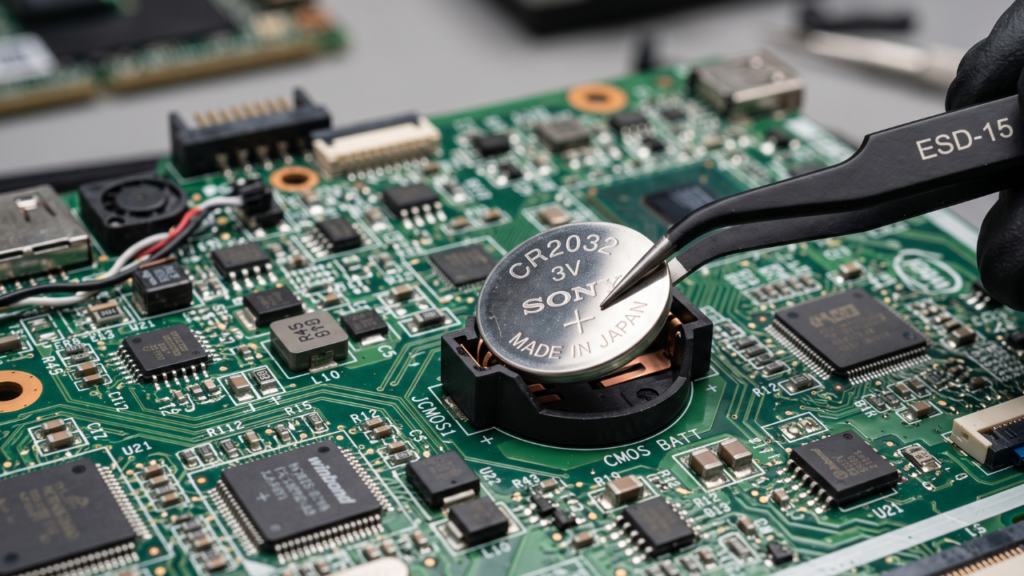
The CMOS (Complementary Metal-Oxide-Semiconductor) is a small coin-cell battery on the motherboard that keeps the BIOS (Basic Input/Output System) powered even when the laptop is turned off and the main battery is disconnected.
If a laptop is several years old, this small battery dies. Once you disconnect the main laptop battery to do your cleaning, the motherboard loses all power. Because the CMOS battery is dead, the BIOS completely forgets its saved settings—including the system time, date, and most importantly, the Secure Boot configuration.
The Fix:
- Re-open the laptop and locate the dead CMOS battery.
- Replace it with a fresh CR2032 (or equivalent) coin-cell battery.
- Turn on the laptop and immediately enter the BIOS settings (usually by pressing F2, F10, or DEL).
- Re-enable Secure Boot and ensure the boot drive sequence is correct.
- Save settings and restart. The laptop will now boot perfectly, free of blue screen errors and severe thermal throttling.
Best Practices to Keep Your Laptop Running Fast
To prevent finding yourself complaining that “my laptop is very slow and hanging” again next year, follow these rules:
- Service Annually: Have your laptop opened, cleaned, and repasted at least once every 12 to 18 months.
- Use Hard Surfaces: Never use your laptop on a bed, pillow, or blanket. Fabrics block the bottom intake vents, suffocating the fans instantly. Use a wooden desk or a hard cooling pad.
- Monitor Temperatures: Use free software like HWMonitor to occasionally check your CPU temperatures. If they consistently hit 90°C+ while idle, it is time for a service.
Frequently Asked Questions (FAQs)
1. Why does my laptop hang and freeze out of nowhere? A sudden laptop hang is usually caused by thermal throttling (overheating), maxed-out RAM, a failing hard drive, or corrupted system drivers. In older laptops, dried thermal paste is the leading culprit.
2. How do I fix a severe laptop hang? First, hold the power button for 10 seconds to force a shutdown. Upon reboot, check your task manager for high CPU/RAM usage. If the laptop is physically hot, it needs an internal cleaning and fresh thermal paste.
3. Why am I searching “my laptop is very slow and hanging” even though I have 16GB of RAM? High RAM does not prevent thermal throttling. If your processor is overheating due to clogged fans, the system will slow itself down to a crawl to prevent heat damage, regardless of how much RAM you have.
4. What happens if I never service my laptop? Dust will block the fans, and thermal paste will turn to stone. This causes the laptop to constantly freeze, reduces the lifespan of the motherboard, and can eventually melt internal soldering, killing the laptop permanently.
5. Why must I disconnect the battery before cleaning my laptop? Laptops carry a live electrical current even when turned off. Dropping a screw or touching the motherboard with a metal tool while the battery is connected can cause a short circuit, destroying the board.
6. What is thermal paste? It is a heat-conductive compound applied between the CPU/GPU and the heatsink. It eliminates microscopic air gaps, allowing heat to transfer efficiently away from the processor.
7. How often should thermal paste be replaced? For heavy users or gamers, thermal paste should be replaced every 12 to 18 months. For casual users, every 2 to 3 years is recommended.
8. What is thermal putty, and how is it different from paste? Thermal putty is thicker and is used to bridge slightly larger gaps between components like Video RAM (VRAM) and the heatsink. It is used where standard thermal paste would be too thin to make contact.
9. Why did I get a Secure Boot error after cleaning my laptop? When you disconnected the main battery, your motherboard lost power. If your CMOS battery was dead, the BIOS forgot its settings, including the Secure Boot configuration required to load Windows.
10. What is a CMOS battery? It is a small, watch-style battery (usually CR2032) on the motherboard that keeps the system clock running and saves BIOS settings when the main laptop battery is removed or dead.
11. How do I fix a Secure Boot Blue Dump Error? Replace the dead CMOS battery, turn on the laptop, enter the BIOS menu, navigate to the Boot or Security tab, and re-enable Secure Boot. Save and exit.
12. Why do my laptop hinges feel tight or make a cracking noise? Over time, dust and heat dry out the factory lubricant in the metal hinges. Applying a tiny drop of high-grade mechanical oil prevents the stiff hinges from snapping the plastic laptop body.
13. Can a cooling pad fix a laptop that hangs and freezes? A cooling pad helps push air into the laptop, but it cannot fix dried thermal paste or fans that are already jammed with dust. It is a preventative measure, not a cure for neglected hardware.
14. Is it safe to use a vacuum cleaner on my laptop fans? No. Vacuum cleaners generate static electricity which can kill motherboard components. They can also spin the fans faster than they were designed to go, breaking the bearings. Use compressed air in short bursts instead.
15. Does reinstalling Windows fix laptop freezing? If the freeze is caused by a corrupted OS or malware, yes. However, if the laptop shuts down due to overheating, reinstalling Windows will not solve the physical hardware issue.
16. How do I know if my thermal paste is dried out? If your laptop fans are completely clean, but your CPU temperatures still hit 90°C+ under a light load and the laptop hangs, the thermal paste has likely degraded into a solid state.
17. What is BIOS? BIOS (Basic Input/Output System) is the underlying firmware that initializes your hardware before the operating system (like Windows) loads.
18. Why does my laptop boot up instantly when the technician checks it? Laptops often behave normally when fully cooled down. The freezing usually only triggers after the laptop has been running for a few minutes and the internal heat builds up beyond safe limits.
19. Should I clean my laptop myself or hire a professional? If you are comfortable safely disconnecting delicate ribbon cables and battery connectors without causing static discharge, you can do it yourself. Otherwise, hiring a professional is much safer.
20. Will adding more storage stop my laptop from hanging? Upgrading from a mechanical HDD to a modern SSD will drastically improve speed. However, if the laptop hangs due to heat, changing the storage drive will not fix the core issue.